
UCM Plan is the campus financial planning and budgeting module and is a campus tool for campus users for all things data management, reporting capabilities, and system efficiency.
Key features of UCM Plan include
Quick Links
- UCM Plan Access
- Budget Request Information
- Smartview Installation Information
- Support and Resources
- Training
- FAQs
UCM Plan Access
To request UCM Plan access, submit your request via an EPM Access Request ticket.
Budget Request Information
Where can I find guidance on submitting budget requests for the upcoming fiscal year?
- Please refer to the 2025 Budget Request Guidelines for detailed instructions and submission timelines.
How can I transfer funds?
- Department staff with access to submit Budget Requests can transfer funds. A Budget Request can be submitted following the steps outlined in the Budget Request Guide Entry Guide. You may also visit the FP&A website for more information on budget request guidelines.
SmartView Overview
For the best experience and highest level of support, we strongly recommend using Oracle SmartView on Windows. SmartView is optimized for the Windows environment and offers the most reliable and fully supported performance. Users with a Windows operating system can install SmartView by following the SmartView Installation Instructions
Mac Users: While SmartView can be accessed on a Mac, the experience is suboptimal compared to Windows. Mac users have two options:
- Using Parallels (recommended on Mac) - Run a Windows environment on your Mac using Parallels. Follow the SmartView Installation Instructions for set up.
- Native Mac OS (not recommended) - Running SmartView directly on MacOS is limited and may not support full functionality. If this is your only option, please submit a ServiceNow ticket request for assistance.
Support and Resources
The following resources have been designed to provide you with timely guidance and support:
On-Demand Training Resources (available 24/7)
We encourage you to revisit UC Learning Center recordings (SSO required) of training sessions at anytime to refresh your understanding of SmartView and various fundamentals.
Hypercare Office Hours
Daily from 1–3 p.m., Monday, April 14 through Friday, April 25 via Zoom (invitations set to UCM Plan users). Drop in with your questions and get real-time assistance.
UCM Plan/EPM Resource Teams Channel
All provisioned UCM Plan users have been added to the UCM Plan/EPM Resource Teams Channel. This Channel serves as your central hub for:
- Key updates and announcements
- Peer collaboration
- Ongoing support during hypercare and beyond
- Note: All ServiceNow tickets remain the primary method for submitting requests. The Teams channel is intended for announcements, collaboration, and informal discussion
Training
Training Preparation Advisory and Resources
The following are mandatory in order to maximize the user training experience:
- A laptop with SmartView add-on installed prior to the session (submit installation requests HERE).
- Review the following videos prior to the training to familiarize yourself with the UCM Plan Enhancement project and get the most out of training:
- SmartView Vocabulary and Acronyms (Time: 12:07)
- Dimensions and Member Selection (Time: 22:33)
- Sample Ad-hoc Retrieval (Time: 15:11)
UCM Plan SmartView Training
- Access this training session via the UC Learning Center (SSO required).
- Audience: All UCM Plan Users
- Overview: This 3-hour training is required for users to be provisioned access to the UCM Plan environment. The session walks through the enhanced SmartView Ad Hoc reporting capabilities and gives an overview of some of the forms designed to streamline business processes.
- Prerequisite(s): SmartView Vocabulary and Acronyms, Dimensions and Member Selection, Sample Ad-hoc Retrieval
UCM Plan Enhancement Supplemental Training
This supplemental training provides an in-depth exploration of the application's features and capabilities. Participants will gain advanced insights into data gathering, reporting, and analytics to enhance daily operations. The session will also cover key lessons learned from UAT, helping users navigate new dimensions of the solution more effectively.
- Click HERE for training slide deck.
- Access this training session via the UC Learning Center (SSO required)
- Audience: All UCM Plan Users
- Prerequisite(s): Successful completion of UCM Plan SmartView Training.
Budget Request Fundamentals Training
The Budget Request Training will provide a comprehensive overview of the key steps involved in creating, reviewing, and navigating the budget request process. The session will also cover lessons learned from UAT to enhance user understanding and efficiency.
- Access this training session via the UC Learning Center (SSO required)
- Audience: UCM Plan users with specific system access role
- Prerequisite(s): Successful completion of UCM Plan SmartView Training.
Workforce Fundamentals Training
The Workforce Fundamentals training will provide an in-depth look at labor data calculations, including the different types and their rationale. The session will feature examples to illustrate these calculations and demonstrate how to access and navigate the data across various forms. Additionally, key lessons learned from UAT will be covered to enhance user understanding.
- Access this training session via the UC Learning Center (SSO required)
- Audience: UCM Plan users with specific system access role
- Prerequisite(s): Successful completion of UCM Plan SmartView Training.
Business & Financial Services Training
Specifically geared for Business & Financial Services team members within the Division of Finance and Administration, this session offers users a comprehensive understanding of the application's options, features, and capabilities. This session provides in-depth demonstrations on report building and structure, including SmartView functionalities in action, along with a review of key lessons learned from UAT to enhance user proficiency.
- Access this training session via the UC Learning Center (SSO required)
- Audience: Business & Financial Services team members within the Division of Finance and Administration
- Prerequisite(s): Successful completion of UCM Plan SmartView Training.
Frequently Asked Questions
How is user provisioning determined?
- Access is provisioned based on your role and responsibilities.
How do I know what I have access to?
- Access to the financial cube for viewing General Ledger (GL) data remains unchanged (e.g., access to all CCOAs).
- Access to create budget requests is user-specific and limited to the departments you support.
- Workforce access is limited to users with staffing reconciliation responsibilities. For RAs, workforce access is restricted to PPM projects only.
If I copy a SmartView sheet to another SmartView sheet by right-clicking the tab, will the SmartView connection carry over?
- No, the SmartView connection will not be maintained. The new sheet will not retain the SmartView connection, so you'll need to establish a new SmartView connection manually.
Are there audit trails for entries made in UCM Plan?
- Yes, cell history is available. To view it, right-click the cell, go to the SmartView menu, and select Cell History. You'll see a record of any changes made, including the date and the user who made them.
When will the canned reports be available?
- A dedicated Office Hours session will cover canned reports: Wednesday, April 16 at 1:00 PM (30 minutes) via Zoom
Where can I find guidance on submitting budget requests for the upcoming fiscal year?
- Please refer to the 2025 Budget Request Guidelines for detailed instructions and submission timelines.
What do I do if I lose the Excel formatting?
What do I do if I lose the Excel Formatting (Dimensions in a blue background, and Data in gray, or yellow background).
Select SmartView on the menu ribbon, Go to the Options Icon, and choose the Formatting tab. Make sure the option for “Use Cell Styles” is selected and click “OK”.
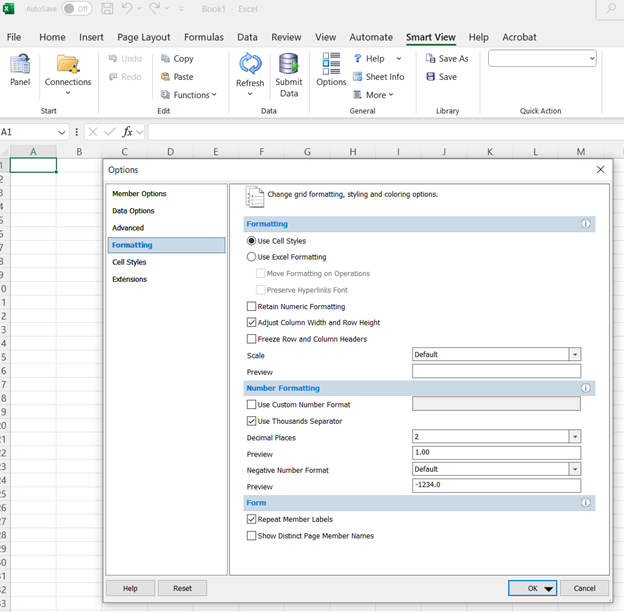
Go back to the SmartView worksheet and refresh your retrieve. If the SmartView cell styles still does not appear. Got to the Options Icon again, and select the Cell Styles tab.
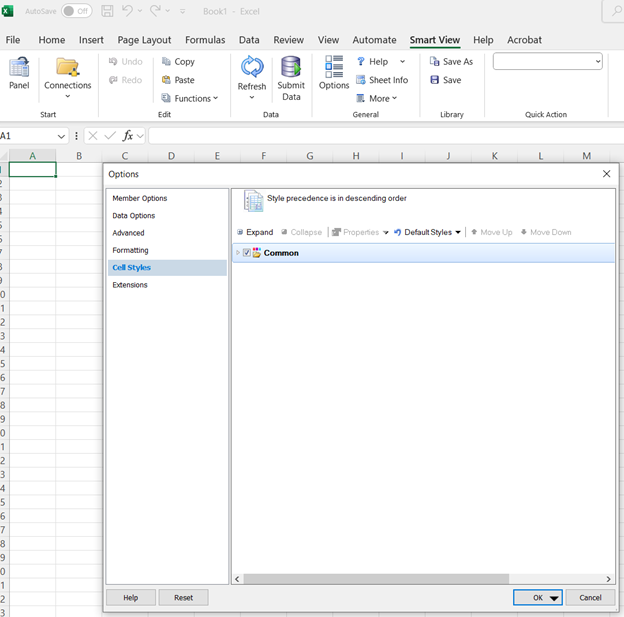
Select the Default Styles drop-down, and Select “Planning”, then click “OK”. Go back to your worksheet and refresh. If you are still not having the standard SmartView formatting on your worksheet, please submit a ticket to IT for this issue.
How can I transfer funds?
- Department staff with access to submit Budget Requests can transfer funds. A Budget Request can be submitted following the steps outlined in the Budget Request Guide Entry Guide. You may also visit the FP&A website for more information on budget request guidelines.
Tools
Ways to Run Reports in Oracle (PDF, 11 pages)
Mapping the Chart of Accounts (CoA)
Videos: General Navigation, CoA Entry Basics
General Navigation in Oracle (Four videos, 15 min. each: Overview, General Navigation, Run a Report, Perform an Inquiry)
Video: CoA Entry Basics (Video, 15 mins.)
Video & Guides: UCPLAN Basics
Instructor-led video (2 hrs., 40 mins.) on budget reporting (presentation slides)
Setting User Preferences and Opening Reports (PDF, 19 pages)
Export a Report to Excel (PDF, 6 pages)
Install ADF Desktop Integration (PDF, 11 pages)
Video: UCPLAN Beyond Basics – Cubes, Dimensions, Hierarchies
Beyond the Basics. A two-hour instructor-led video about UCMPLAN dimensions, hierarchies and more. Video presentation slides
Financials Cube: A total of three instructor-led hours of video, presented in two parts. Part One | Part Two. Video presentation slides
Guides: UCPLAN Report Types
Run a Smart View Ad Hoc Analysis (PDF, 16 pages)
View Invoice and Payment Status via Requisition Search (PDF, 24 pages)
Videos/Guides: SmartView Basics
Oracle Smart View is an Excel-based analysis tool that allows ad hoc reporting on budgeting data. It allows drag and drop, drill-down and pivoting options to manipulate data. Smart View reports can be saved offline and refreshed with the latest, real-time budgeting data from UCMPLAN.
Windows Users
Users with a Windows operating system can install SmartView by following the SmartView Installation Instructions
Mac Users
Mac users can install SmartView using one of the following two methods:
- Parallels - on a Mac using Parallels use the SmartView Installation Instructions
- Mac OS - To run SmartView in the native OS, submit a ServiceNow ticket request.



